
Perfect Book
Perfect Book is an InDesign plugin that helps you prepare books and long documents more quickly and consistently. It takes care of many of the small, repetitive cleanup tasks that often slow down book production, such as fixing extra spaces, repeated punctuation, straight quotation marks, manual line-breaks, typed bullets, and other common text issues. This makes the document easier to review, style, and finish before print or delivery.
The plugin is especially useful when working with imported manuscripts, files from Word, or documents that have been edited by several people. Instead of checking every small formatting problem manually, you can use Perfect Book to apply selected cleanup rules in a controlled way and then review the result.
NOTE: Perfect Book works only from InDesign version 21.0 (CC 2026). It does not work in earlier versions of InDesign.
What the plugin do:
Prepare Document
Use Prepare Document to fix text-level issues such as spacing, punctuation, quotation marks, non-breaking spaces, and other common manuscript clean-up problems.
Spacing and returns
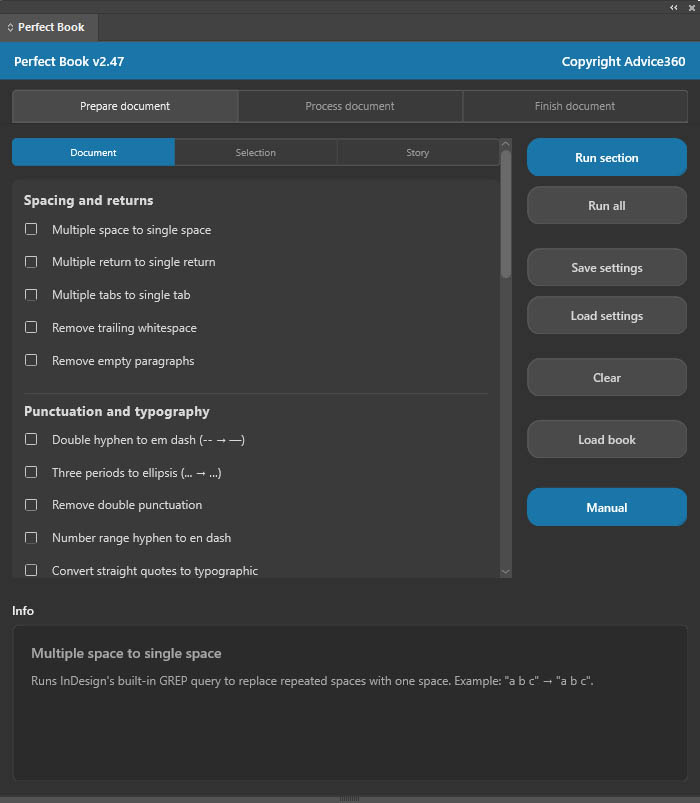
These functions remove common spacing problems that often appear in imported manuscripts.
- Multiple space to single space — runs InDesign’s built-in GREP query to replace repeated spaces with one space. Example: “a b c” → “a b c”.
- Multiple return to single return — collapses two or more consecutive paragraph returns into one.
- Multiple tabs to single tab — collapses two or more consecutive tab characters into one.
- Remove trailing whitespace — removes spaces and tabs at the end of a paragraph, immediately before the return.
- Remove empty paragraphs — removes paragraphs that contain only whitespace, tabs, and a return. Note: in rare layouts, this may leave a text frame empty if that paragraph was its only content.
Punctuation and typography
These functions improve typographic consistency by replacing plain or repeated characters with cleaner typographic equivalents.
- Double hyphen to em dash — converts two or more consecutive hyphens to an em dash. Example: “a–b” → “a—b”. Warning: this affects every occurrence of “–”, including code snippets or technical notation. If you also convert manual bullets that use hyphens, run that function first.
- Three periods to ellipsis — converts three or more periods to one ellipsis character. Example: “Wait…” → “Wait…”.
- Remove double punctuation — reduces repeated ! ? , ; : characters to a single instance. Example: “Really??” → “Really?”. Periods are handled by the ellipsis function, and mixed combinations such as “?!” are left unchanged.
- Number range hyphen to en dash — converts a hyphen between two digits to an en dash. Example: “10-15” → “10–15”.
- Convert straight quotes to typographic quotes — converts straight quotation marks and apostrophes to the typographic quotation marks defined by the document language. This assumes one document language and does not reliably handle feet/inches notation such as 5’10”.
Non-breaking spaces
These functions help keep related characters together, so they do not split awkwardly across lines.
- NBSP before units — inserts a non-breaking space between a number and listed units or symbols, such as %, kr., or other comma-separated values. Example: “500 kr.” → non-breaking space inserted.
- NBSP in initials — inserts non-breaking spaces between consecutive single-letter initials. Example: “H. C. Andersen” → non-breaking spaces between initials.
- NBSP after § — inserts a non-breaking space between a paragraph sign and the following number. Example: “§ 12” → non-breaking space after §.
Numbers, fractions, and units
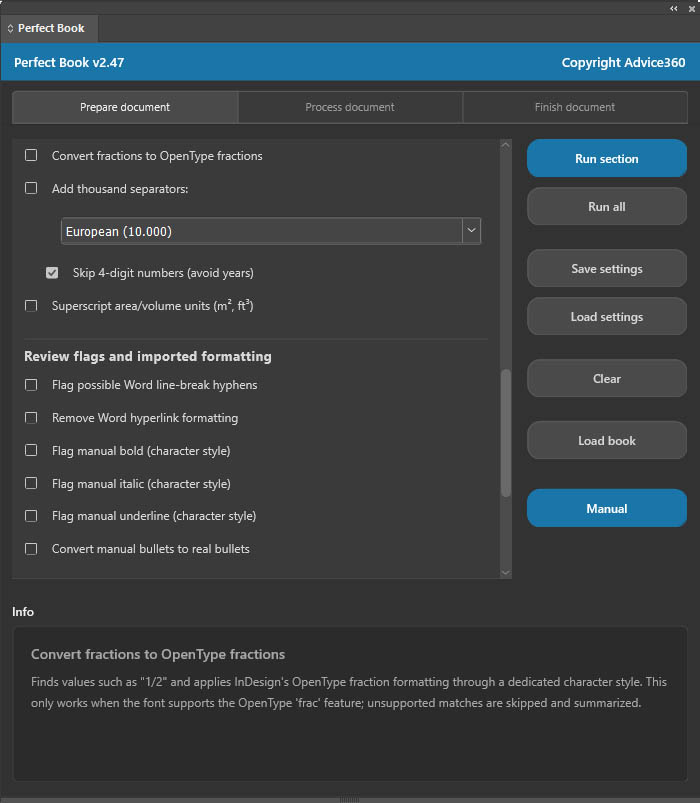
- Convert fractions to OpenType fractions — finds values such as “1/2” and applies InDesign’s OpenType fraction formatting through a dedicated character style. This only works when the font supports the OpenType frac feature; unsupported matches are skipped and summarized.
- Add thousand separators — inserts thousand separators using the selected style: European (10.000), UK/US (10,000), French (10 000), or a custom separator. Example: “10000” → “10.000”. The default Skip 4-digit numbers option helps avoid changing years such as 2024.
- Superscript area/volume units — raises the exponent 2 or 3 after number-and-unit combinations such as “25m2”. Supported units include m, km, cm, dm, mm, ft, in, mi, and yd. Example: “25m2” → exponent raised.
Review flags and imported formatting
- Flag possible Word line-break hyphens — finds a hyphen followed by a forced line break and marks it with a red character style for manual review. It is not auto-corrected because genuine compound words and broken words can look identical in the text.
- Remove Word hyperlink formatting — finds URLs and email addresses and clears local formatting such as blue colour and underline, returning the text to the underlying style. This does not remove actual clickable InDesign hyperlink objects.
- Flag manual bold / italic / underline — finds local formatting that is not style-based and applies a red character style so it can be reviewed and converted into proper character styles. Matching depends on exact font style names such as Bold or Italic.
- Convert manual bullets to real bullets — finds paragraphs that begin with •, ●, ▪, ‣, -, or * followed by a tab, removes the typed marker, and applies InDesign’s real bullet formatting using •. The bullet formatting is applied locally unless the paragraph style already controls indentation and spacing.
Run saved text and Grep queries
Below the regular Prepare Document options is a list of your own saved Find/Change queries — both GREP and Text type queries, read directly from InDesign’s own Find/Change Queries folder.
Process Document
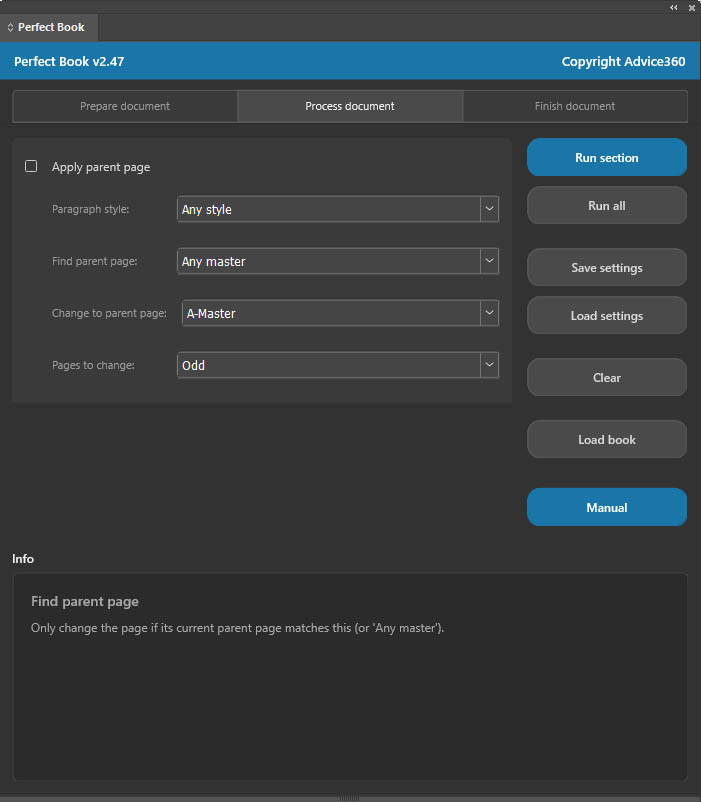
This tab contains Apply Parent Page, which automatically changes a page’s parent page (master page) based on where a specific paragraph style appears — typically used to give chapter-opening pages a different layout (for example, without a running header) than the rest of the book.
The rule is built from four settings:
- Paragraph style — which paragraph style marks the trigger point. Choose a specific style (e.g. “Chapter Title”), or Any style to trigger on the first non-empty paragraph on each page regardless of its style.
- Find parent page — restricts the rule to pages that currently use a specific parent page, or Any master to apply the rule regardless of the page’s current parent page.
- Change to parent page — the parent page to apply once a match is found.
- Pages to change — which page, relative to where the paragraph style was found, should actually be changed.
Finish Document
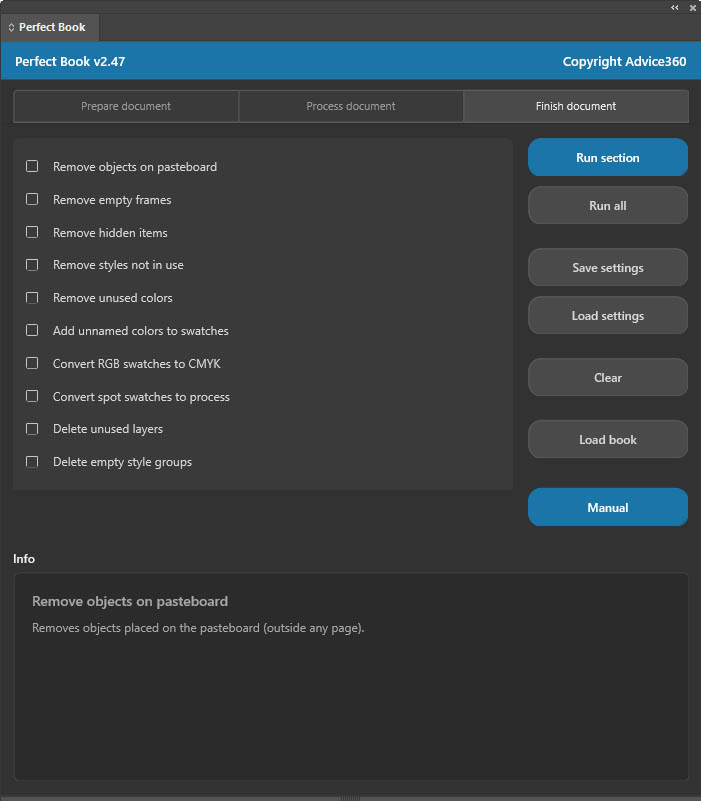
Use Finish Document for structural cleanup, typically as the final step before output.
- Remove objects on the pasteboard.
- Remove empty frames.
- Remove hidden items.
- Remove unused styles, colours, layers, and empty style groups.
- Add unnamed colours to swatches and convert RGB or spot swatches.
Save and Load Settings
All settings can be save and resued on other documents.